
Passkeys are a modern password replacement designed for a faster, more secure sign-in experience.
Passkeys are fully FIDO2-certified and meet high-level security standards, including SOC and HIPAA, by replacing vulnerable passwords with a hardware-backed cryptographic credential.
Passkeys are recommended because they bypass traditional authentication methods that expose users to phishing, credential stuffing, and brute-force attacks, such as:
Although Two-Factor Authentication (2FA) adds a layer of defense, attackers can still bypass SMS codes or push notifications via 'SIM swapping' and '2FA fatigue' attacks. Passkeys effectively neutralize these threats.
The primary types are Passkey - Platform Authenticator, Passkey Cross-Platform Authenticator, and Security Keys, as briefly described in the following table. Click on a Type / Link for more details.
| Type / Link | Use | Local Storage | Synced Across Multiple Devices |
| Passkey - Platform Authenticators | Uses built-in technology on the same device or all synced devices. | Stored in the device's hardware security chip (example: TPM on Windows). |
|
| Passkey Cross-Platform Authenticator | Uses your phone (Android / iOS) for external authentication. | Stored locally on the mobile device. |
|
| Security Keys | Uses external devices (example: YubiKeys) connected via USB, NFC, or Bluetooth. | Stored solely on the portable hardware device. | Not synced to the cloud; must be physically present with the device being used. |
These passkeys are built into your hardware and automatically sync across your trusted devices, provided they remain within the same brand ecosystem (e.g., Apple to Apple, or Google to Google).
| Pros | Cons |
|
|
| Mobile (Android) |
|
| Desktop (Chrome) | Authenticator: You can use the Google Password Manager directly within the Chrome browser on your computer to create and use passkeys. |
| Mobile (iPhone/iPad) |
|
| Desktop (Mac) |
|
Lets you log in on one device using a passkey stored on another device (like your phone).
| Pros | Cons |
|
Requires two (2) devices to be nearby. |
| Pros | Cons |
|
|
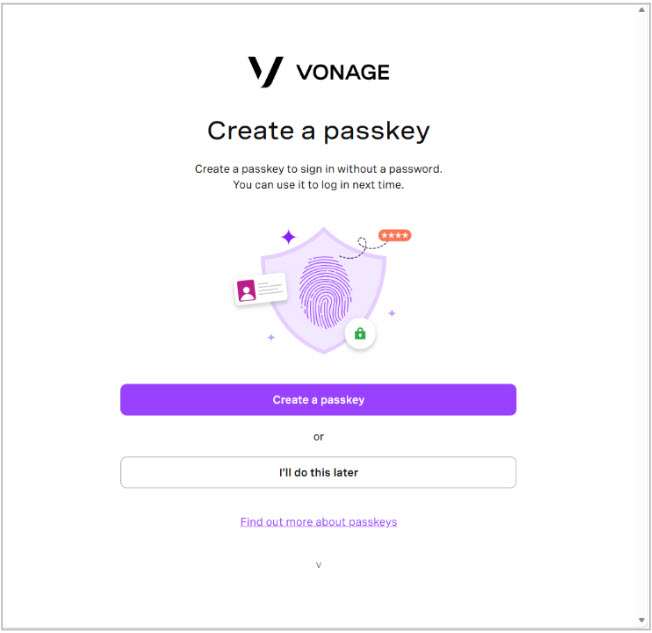
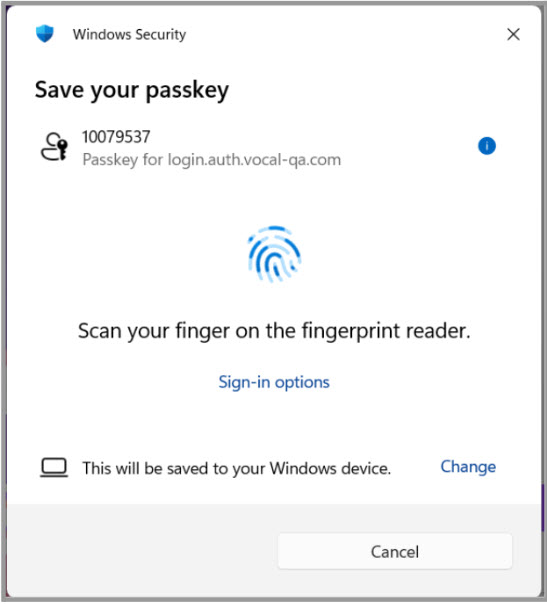
Follow prompts for the passkey options presented to you. These options presented depend on your device type, browser, browser features enabled, and the security features set up by your Network Administrators.
In the following example, the user is set up with Windows Hello.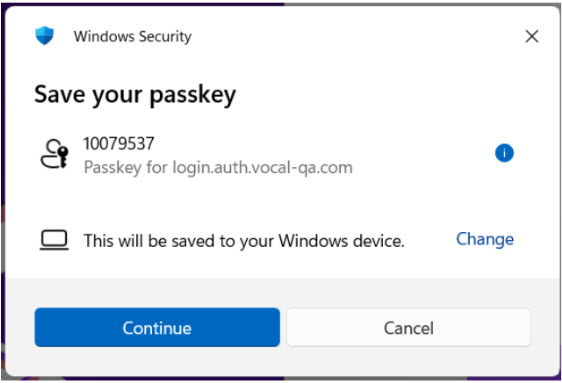


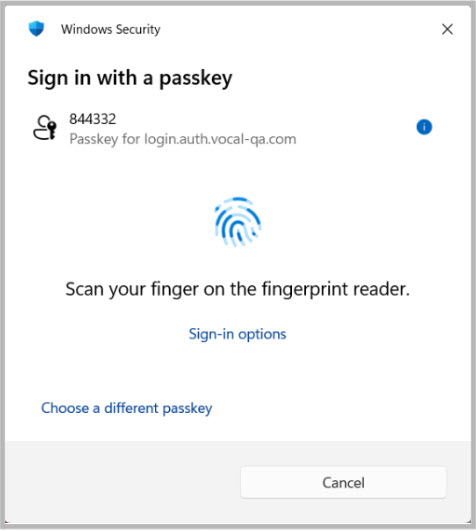
Passkeys can be viewed and managed in the Admin Portal, Desktop App, and Mobile App.
The following describes and provides solutions for authentication and registration error messages you may encounter with Passkeys.
NOTE: If you select "I'll do it later" when prompted to set up a Passkey, this prompt is not displayed again until after you have successfully signed in 10 times or 7 days have elapsed since you chose to skip.
| Authentication Error Messages - Errors on attempts to sign in with a Passkey | |
| Error & Description | Cause/Solution |
| Passkey Unavailable- Passkey login is temporarily unavailable. You can try again or sign in with your password instead. | The API responsible for authentication is not available. This could be due to a temporary outage. Also, this error appears if someone has manipulated the URL. |
| Passkey Not Found or Canceled- No passkey was detected for this device, or the operation was canceled. Log in with your password and two-factor authentication (2FA) to proceed. After you are verified, you can set up a new passkey. |
User attempted to log in from a device or browser that does not have a passkey paired with the application. Also, this message is displayed if the user clicks cancel at any time during the authentication process. The user can retry and potentially select another passkey on the device to attempt to authenticate, or log in using a password and 2FA. When the user logs in with a password and 2FA, they are optionally prompted to register an additional passkey on their device. |
| Passkey Request Timed Out- You did not respond to the passkey prompt in time. Please try again. | User did not interact with the passkey prompt for an extended period (usually 60+ seconds) |
| Passkey is not found on this device- No Passkey is set up for this device. To create one, log in with your password and 2FA. After verification, you can set up a passkey for this device. You can also choose to sign in with your password for now. | No credentials found; an attempt was made to use an object that is not or is no longer usable |
| We could not verify you- We were unable to verify your biometric input. Try again or use another method to log in. | The biometric input could not be verified. |
| Registration Error Messages - Errors on attempts to register a Passkey | |
| Error & Description | Cause/Solution |
| Passkey Unavailable- We could not complete the passkey setup right now. You can try again or set it up later. | The API responsible for authentication is not available. This could be due to a temporary outage. Also, this error appears if someone has manipulated the URL. |
| Passkey Setup Canceled- Your passkey setup was canceled. Retry or continue with your password. |
User attempted to register on the device or in a browser, but clicked cancel at any point during the authentication process. The user can retry and potentially select another passkey on the device to attempt authentication, or click Set it up later, which logs the user into the application. |
| Passkey Request Timed Out- You did not respond to the passkey prompt in time. Try again or set it up later. | User doesn't interact with the passkey prompt for an extended period (usually 60+ seconds). |
| Passkey already registered for this device- The passkey already exists for this device. You cannot register the same device twice. | The user is attempting to register passkeys for the same device, which already exists |
| Passkey Setup Error in Chrome- Unable to save passkey when sync is paused. |
When a user registers a passkey via Chrome, the browser offers to save it to Google Password Manager, which syncs it across all devices on the same Google account. If sync is paused, the user is redirected to the Google sign-in page to authenticate; however, once authentication completes, an error message is displayed, and the passkey cannot be saved. Even if you use another Google account, it will fail because Chrome cannot hand off the passkey registration to a different account mid-flow. Users have the option to resolve the Google sync issue, use an alternative method, or try again later: Resolve Google Sync IssueThis error occurs because Google Password Manager passkeys are end-to-end encrypted and tied to a specific Google account's sync session. When sync is paused, Chrome's session token expires or requires re-verification, which "locks" the credential store, and the passkey cannot be written to it. To resolve:
Use Alternative MethodAt the Passkey prompt, click Change or Use a different method, then select either of the following:
Try Again LaterAt the Passkey prompt, click I'll do this later. You will receive a prompt to set up in 7 days or after 10 sign-ins (whichever comes first). |
| Failed to register the device for passkey- We were unable to activate this device for passkeys. You can also choose to log in with your password for now. | Any failure when calling the API to activate the 2FA device. |
| Passkey Limit Reached- You have reached the maximum number of passkeys. Use your password or remove an existing passkey to add a new one. | There is a limit of five passkeys per user. This error message displays to users who attempt to configure a sixth passkey. |
| Both Authentication and Registration Messages - Errors on authentication or registration of a Passkey | |
| Error & Description | Cause/Solution |
| Session Expired- Your session has expired; restart to continue. | User leaves login flow pages idle for too long (typically 5-15 minutes). The URL was modified, corrupted, or is from a different session Also covers unknown edge cases, new error types, or errors from future API changes |
| Passkeys Not Supported- Your browser or device does not support passkeys. You can continue with your password or use a different device | Using a browser/device without WebAuthn support, or an authenticator that does not support the required algorithms. |
| Verification couldn’t be completed | Authenticator hardware issue, firmware problem, or unhandled error condition. |
| No compatible device found- We could not find a compatible device for this action. Connect a supported device or use another login method. | No compatible authenticator connected/available, or the user declined to use their authenticator. |
| Verification failed- We could not verify your identity. Use another sign-in method to access your account. | The passkey assertion (signature) failed verification. Could indicate credential mismatch or tampering. May occur with corrupted credentials or server-side issues. |